

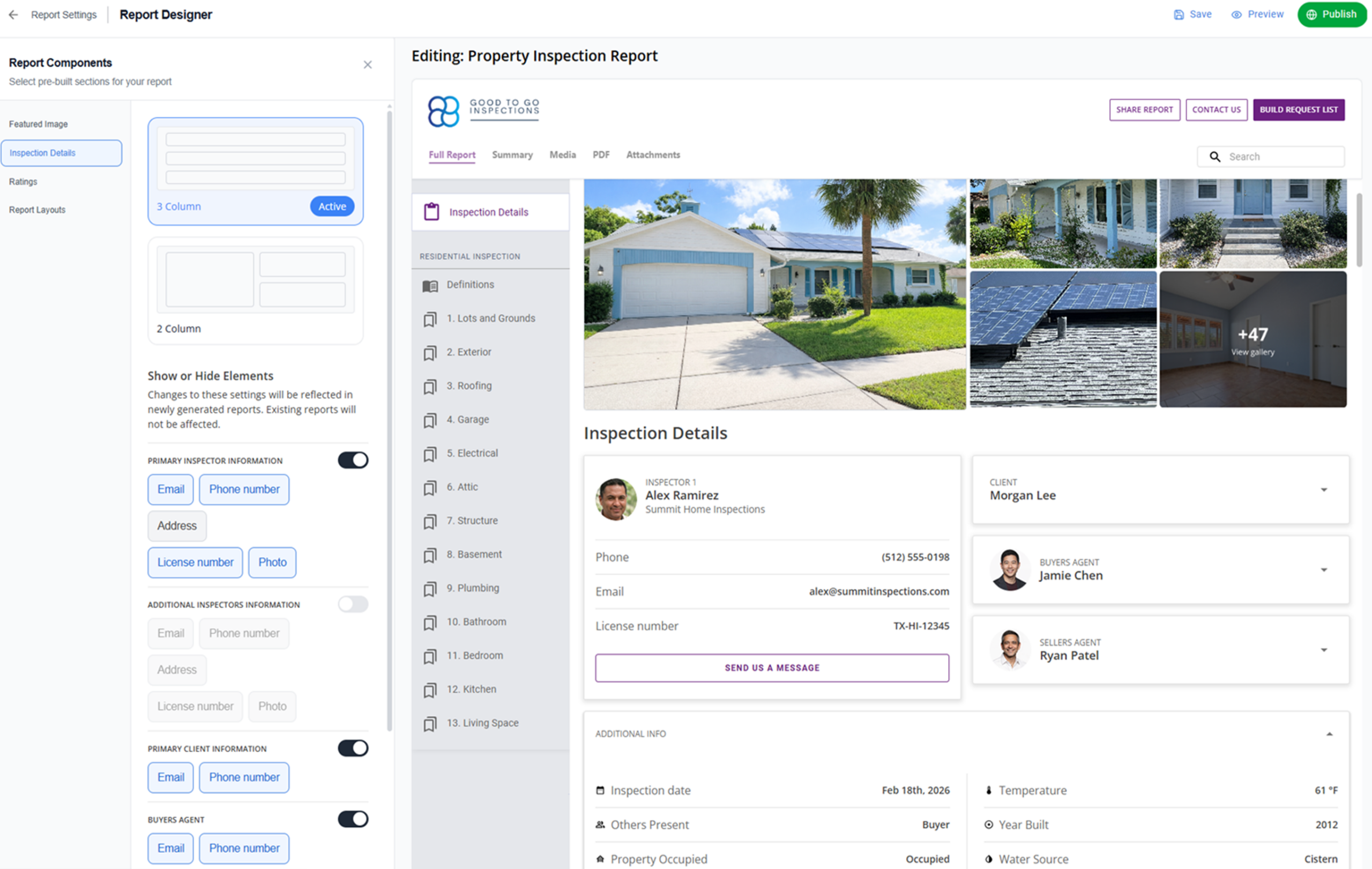
How do inspectors hide sensitive client data or change property detail layouts in their reports? Here’s how: Palmtech has released new functionality within the Report Designer that allows for more customization of your inspection details and professional branding.
When we launched Palmtech 11 in February, the goal was to make your report writing faster. But speed doesn’t help if you’re stuck answering for why certain private details are visible to the wrong people.
This new update gives you the specific tools you need to toggle field visibility and swap layouts, so your reports show exactly what your clients need to see – and nothing more than that.
Inspection Details: More control over your reports
The Inspection Details section lets inspectors control how key stakeholders and property information are presented in the report. Now inspectors have more flexibility to tailor reports based on audience, brand positioning, and business preferences.
The Inspection Details section has two core capabilities:
- Layout style selection: Choose how information is visually organized
- Show/hide controls: Decide exactly which details appear in the report
What do these layouts include?
Each layout can include structured “cards” with the following information (all optional):
- Primary inspector details
- Secondary inspector details
- Company info
- Contact info
- CTA: Send us a message
What’s the value?
Structured cards give inspectors more control over which contact details – such as their home address – appear and how they appear in their reports. Inspectors also have more control over whether and how services and fees appear. You can also quickly and easily include an agent photo as a straightforward way to support your referral partners and show you value your professional relationship with them.
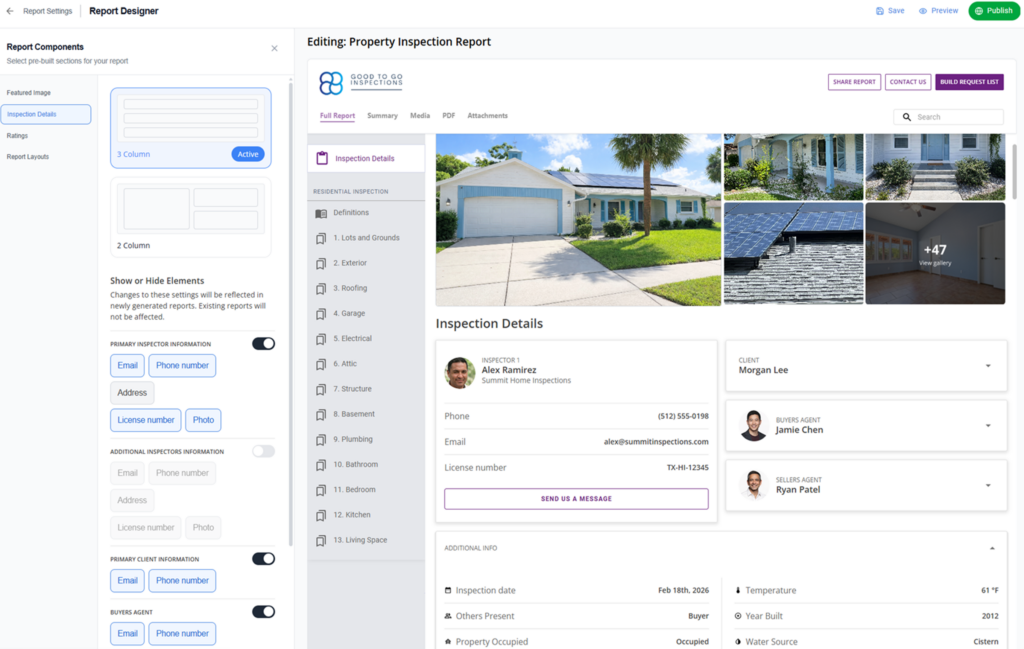
Structured multi-card layout – Style 1
For inspectors who prefer a traditional, info-rich presentation, Style 1 uses a structured card-based layout organized into rows of three columns, followed by full-width panels for additional sections.
What does this layout include?
Top section (card layout) – all optional:
- Primary inspector
- Secondary inspector
- Client(s)
- Buyer’s agent
- Seller’s agent
- Property details
Below the cards (full-width panels):
- Additional information (inspection date, weather, utilities)
- Services and payment summary (including “View Invoice” call to action)
What’s the value?
Cards automatically adjust and wrap based on which sections are enabled, so reports have a clean, balanced layout.
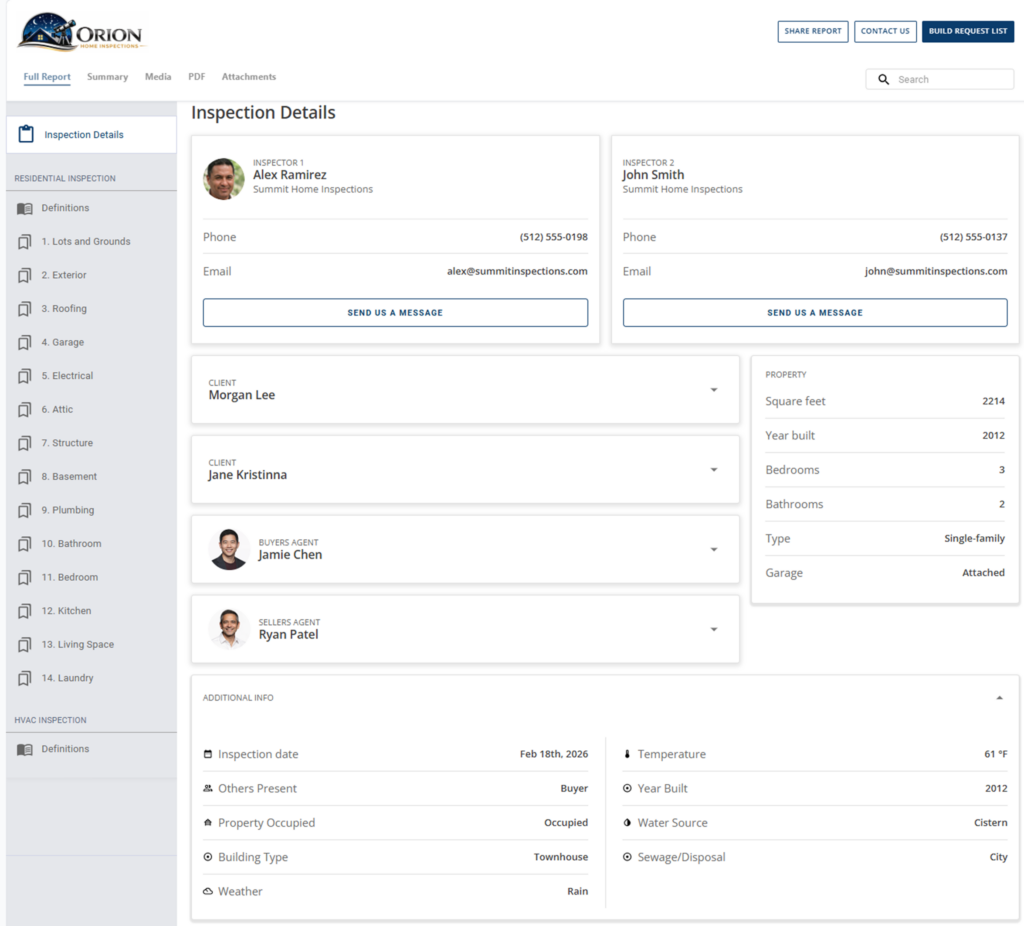
Split-view layout – Style 2
For inspectors who want a modern, side-by-side organization, Style 2 organizes information in a two-column layout for a more contemporary look and feel.
What does this layout include?
Left column:
- Primary and secondary clients
- Property details displayed in compact cards, with a “View All” option, if expanded
- Additional information
- Services
Right column:
- Primary inspector
- Secondary inspector
- Buyer’s agent
- Seller’s agent
What’s the value?
Property details are displayed in smaller cards for a streamlined visual experience.
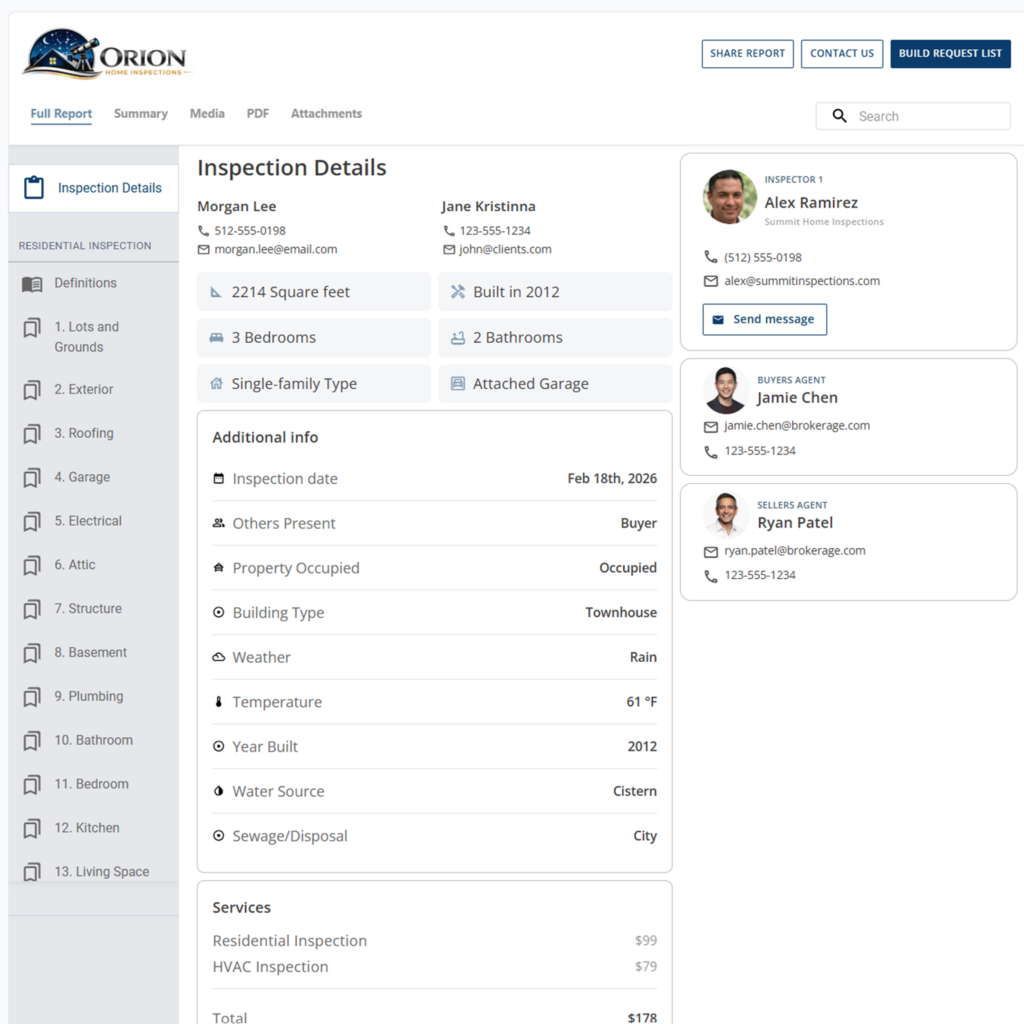
Visibility toggles: More control over report content
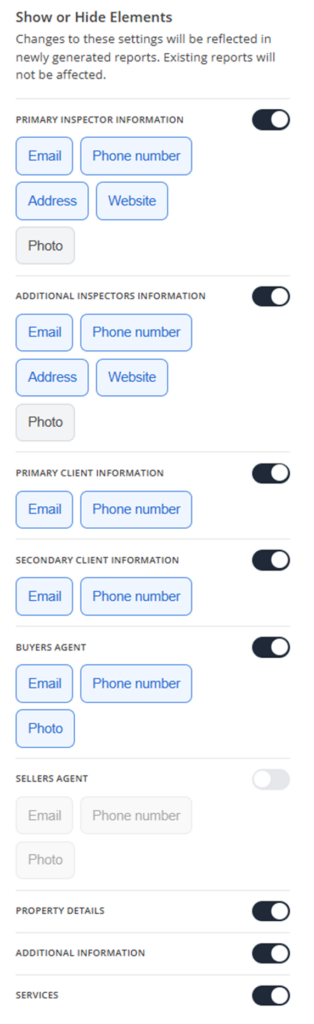
This was the number one request from inspectors – you can now flip a switch and show or hide entire sections or specific fields, like email addresses, inspector home addresses, and phone numbers.
Now, you can just pull it from your reports with one click, giving inspectors more control over exactly which sections and data fields appear in their reports.
Inspection toggles
Inspectors can turn entire sections on and off, including:
- Primary inspector
- Secondary inspector
- Primary client
- Secondary client
- Buyer’s agent
- Seller’s agent
- Property information
- Additional information
- Services
Field-level toggles
Within each section, inspectors can choose to show or hide specific details, such as:
- Phone number
- Photos for inspectors and agents
What is the value?
This feature gives you increased control over your privacy and compliance, with the flexibility to tweak your reports based on what your clients and referring agents want to see.
We don’t just call these custom fields; we call it brand control. You choose the level of detail and the layout, so your reports better reflect your business, not just a standard template.
The roadmap to better report writing
This update is a key part of making continual improvements to the Report Designer. We’re focused on making sure your software is a tool that supports your business, rather than a rigid template you have to work around.
Keep an eye out for more announcements on the Report Designer – we’ll be rolling out new functionality related to our interactive report layouts very shortly!
Ready to take full control? Stop fighting with templates and start building reports that actually work for you. Protect your data, your client’s data and give your favorite agents a reason to keep sending you leads. Try Palmtech 11 for free and see the difference for yourself.